
Add Santa toYour Photo
Upload your room. Santa drops by. The kids believe.
Santa is placed into your photo as it is: same room, same angle, same light. Works with indoor rooms, trees, doorways and porches.
Free: 5 credits Auto-deleted in 24h
Use only your own photos or ones you have permission to use. · Terms
To add Santa to a photo, upload a picture of your living room, Christmas tree, kitchen table or front door, pick a moment such as Santa Leaving Gifts or Santa Caught on Camera, and press Add Santa. The AI keeps your room as it is and places Santa in it with matching light and shadows.
How to put Santa in your picture
- 1
Take a photo of your room
Snap the tree, the fireplace, the cookie plate or the front porch. Daylight or evening, both work.
- 2
Choose Santa's moment
By the tree, leaving gifts, eating cookies, waving at the door, with his reindeer, or caught on a security camera.
- 3
Show the kids
Download the photo, turn it into a card, or animate it so Santa really moves on Christmas morning.
Real results
Santa, in real living rooms
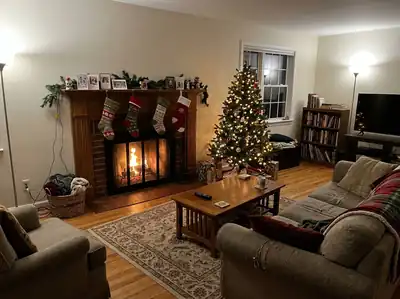
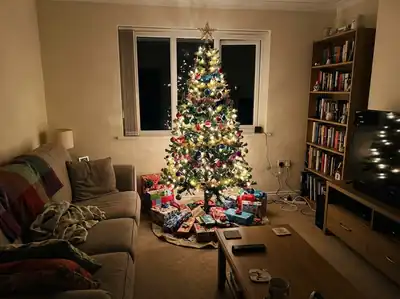
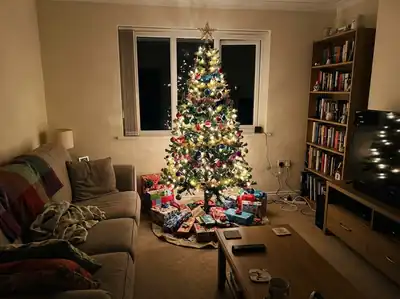
Each "before" is an ordinary room photo. The room, the furniture and the camera angle stay put; Santa is added with the room's own lighting.
 Before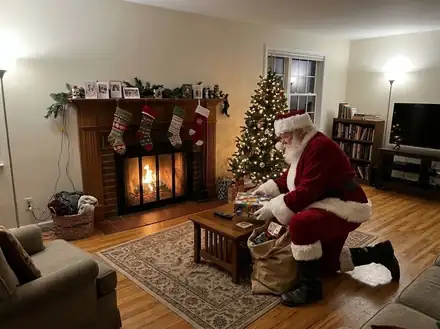
 Before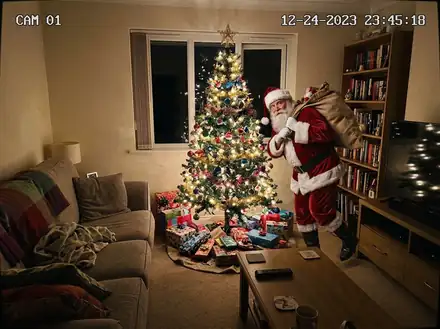
 Before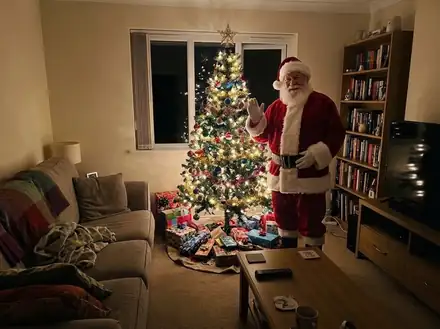
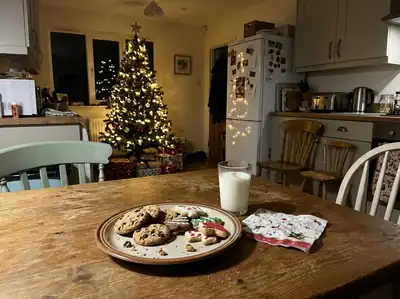 Before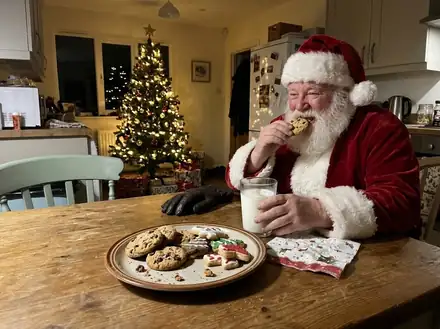
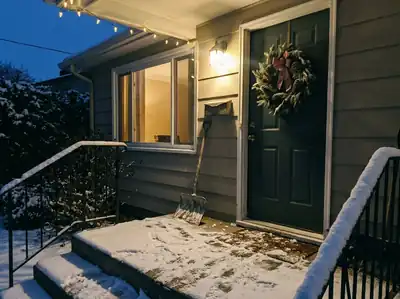 Before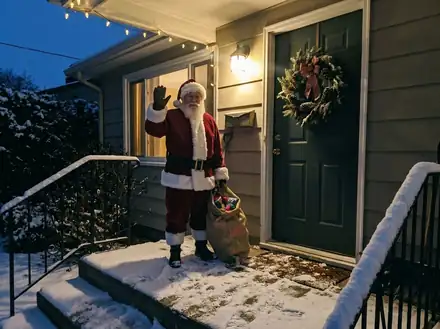
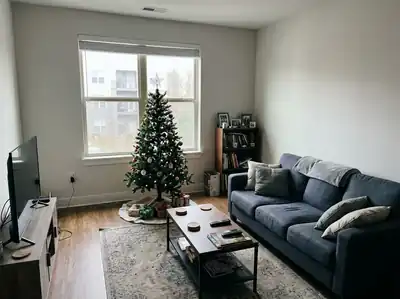 Before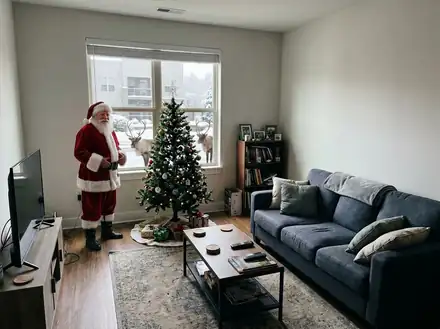
All people and pets in these examples are AI-generated; no real customers' photos are shown.
Why this Santa looks real
Your room stays your room
Same furniture, same tree, same angle. Only Santa is new, so the photo still looks like your home.
Light that matches
Santa picks up the warm lamp glow, the tree lights or the cool porch light, with shadows on your floor.
Santa caught on camera
The CCTV-style scene adds a grainy night look, a "CAM 01" label and a Christmas Eve timestamp.
Six Santa moments
By the tree, leaving gifts, eating cookies, with reindeer, waving at the door, or sneaking past the camera.
Make Santa move
Turn the photo into a short video where Santa waves and winks (20 credits for 5 seconds).
Private, auto-deleted
Uploads and results are deleted 24 hours after you make them. We never use your family photos to train AI.
How adding Santa to a picture works
Most "add Santa" apps paste a cut-out Santa sticker on top of your photo. It never quite fits: the light is wrong, he floats above the floor and he is the wrong size for the room. Here the AI redraws your photo with Santa inside it, so he stands on your rug, catches the glow of your tree lights and casts a shadow where he should.
Everything else is kept: the furniture, the decorations, the camera angle and the framing. That matters, because the photo has to look like your own living room for the magic to work on Christmas morning.
Six Santa moments to choose from
Pick the moment that fits your photo:
- Santa by the Tree: standing beside your Christmas tree, smiling at the camera.
- Santa Leaving Gifts: kneeling to place a present under the tree, with his sack beside him.
- Santa Caught on Camera: your room turns into a night-time security camera frame, with "CAM 01", a Christmas Eve timestamp and Santa tiptoeing through.
- Santa Eating Cookies: at the kitchen table with cookies and a glass of milk.
- Santa & Reindeer Outside: in the yard, or at the window with reindeer in the snow outside.
- Santa Waving at the Door: at your front door or porch with a sack of gifts.
Santa caught on camera: the one kids love
The security-camera look has become a Christmas tradition of its own. Kids see a grainy night view of their own living room, a timestamp from Christmas Eve, and Santa sneaking past with a sack of presents. It looks like evidence, which is exactly the point.
For the best result, take the photo from a high corner, the way a real home camera would see the room, with the tree in view. Evening photos with the lamps or tree lights on look the most convincing. Want him to actually move? The AI Santa video turns the same room photo into a short clip where Santa walks in, leaves a gift and winks at the camera.
Tips for a believable Santa photo
A few small things make a big difference:
- Leave some empty floor space next to the tree or door, so Santa has somewhere to stand.
- Keep the photo sharp and level; a blurry photo makes Santa blurry too.
- Room photos without people work best. If family members are in the photo, they are kept as they are.
- Use "Extra details" for small requests, such as "Santa holding a red gift box" or "Santa looking at the camera".
- Try a second moment on the same photo if the first one isn't quite right; tap another scene under the result.
Santa hats, filters and Santa portraits
Want a Santa hat on your own head instead of Santa in the room? Use the Santa Hat & Snowflakes scene in the AI Christmas photo generator, which puts Santa hats on everyone with falling snow behind them. It works on selfies, couples, families and pets.
Think of these scenes as a smarter Christmas filter: instead of an overlay, the whole picture is rebuilt for the holidays. When your Santa photo is ready, tap "Make it a card" to add a greeting, or download it and save it for Christmas morning.
Each Santa photo costs 5 credits, and the first one on your device is free with no sign-up. Uploads and results are deleted after 24 hours.
Ideas for your Santa photo
Christmas morning proof
Show the kids a photo of Santa leaving gifts under your own tree.
Santa caught on camera
A security-camera still of Santa sneaking through the living room on Christmas Eve.
Photo cards
Turn your Santa photo into a card with a greeting and your family name.
Messages to family
Send grandparents a picture of Santa visiting the house this year.
Add Santa to photo FAQ
Upload a photo of your living room, tree, kitchen table or front door, choose a Santa moment such as Santa by the Tree or Santa Leaving Gifts, and press Add Santa. The AI keeps your room as it is and adds Santa with matching light and shadows, usually in under a minute.
More Christmas tools
Proof that Santa came
One photo of your room is all it takes.